Managing Linux Devices with Microsoft Intune: A Complete Baseline
The complete guide of managing Linux devices with Microsoft Intune


What is the IntuneLinuxBaseline project?
Linux has quietly become more popular in the last few years. Developers want it, data teams want it, and more and more users are discovery Linux. The hard part has never really been the operating system, it's bringing those devices under the same management and security umbrella as everything else, without carving out a separate, second-class process for them.
Microsoft Intune supports Linux, but anyone who has tried it knows the support is thin. There's no Autopilot-like capability, no settings catalog, no configuration profiles, and only a handful of built-in compliance rules. The community has filled some of those gaps over the years with helpful scripts and write-ups, but they tend to live as isolated puzzle pieces, useful on their own, far more useful assembled into one coherent picture.
That's what the IntuneLinuxBaseline project is: an opinionated, end-to-end starting point for managing Linux endpoints with Intune. It contains a collection of scripts, tipps, documentations, built around scalability, flexibility, and security without losing sight of usability.
check the complete baseline here ➡️ IntuneLinuxBaseline
What "managing Linux devices" actually means
Before writing a single script, it helps to define the goal. What do we actually mean when we say we want to manage a Linux device the modern way? Whatever the platform, a few basic things need to exist:
- A scalable, user-driven enrollment with minimal effort
- A set of security policies to reduce exposed weaknesses
- A compliance status for the device, so Conditional Access only grants access when the device is compliant
- Some settings that make the day-to-day work experience more convenient
- Some basic device information in Intune
Everything that follows maps back to one of those five points. On Windows, macOS, iOS, and Android, Intune hands you rich, native tooling for most of this. On Linux it does not. And that gap is exactly what this baseline fills.
Enrollment: solving the "there is no Autopilot" problem
This is the first wall people hit. Intune offers no native way to prepare a Linux device before the user signs in. no Autopilot, no MDM sync like Apple Business Manager, no install customization. The default expectation is that someone manually installs the OS, clicks through everything, reaches the desktop, and then enrolls. That's fine for one device; it doesn't scale to a fleet.
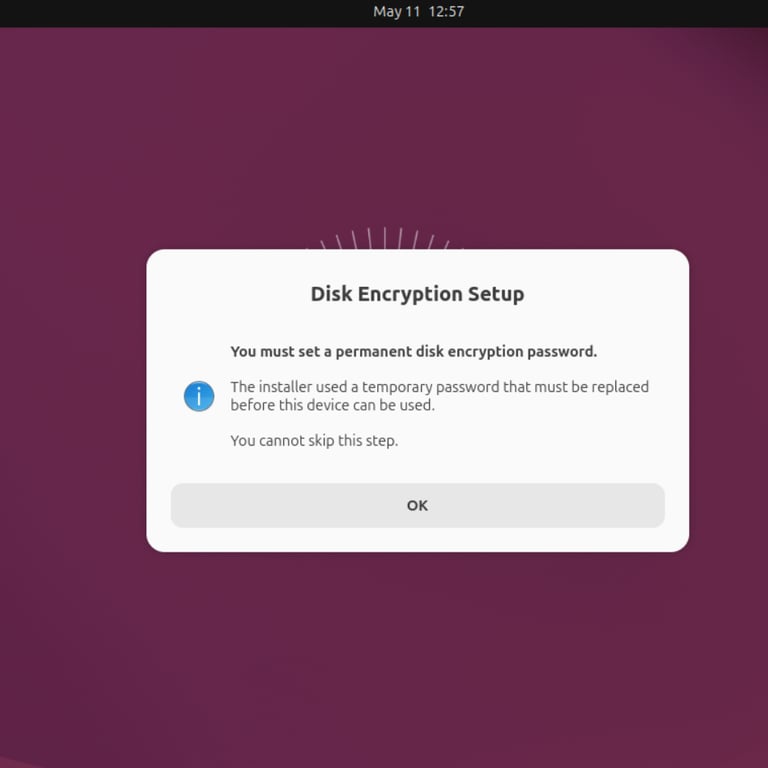
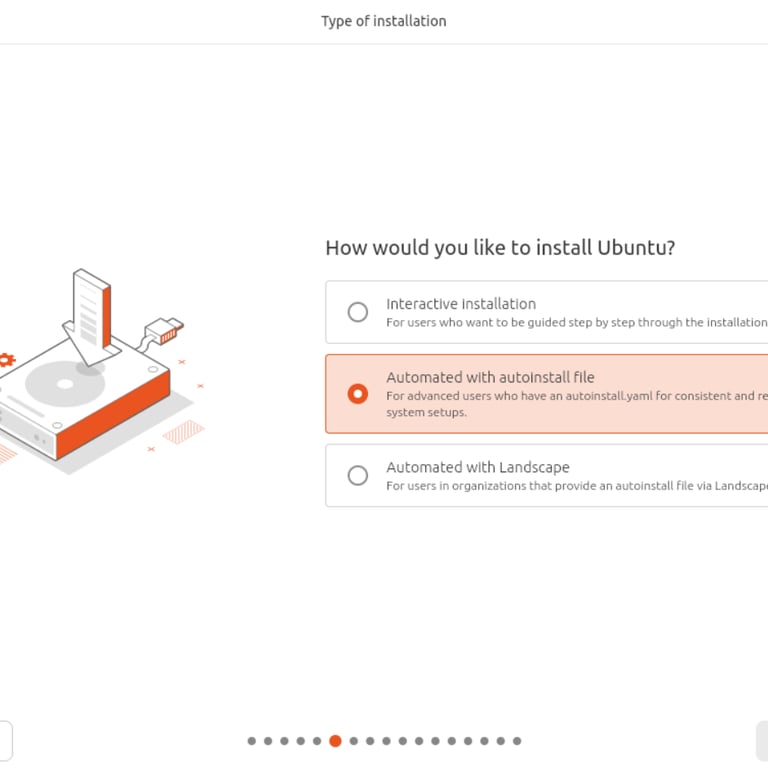
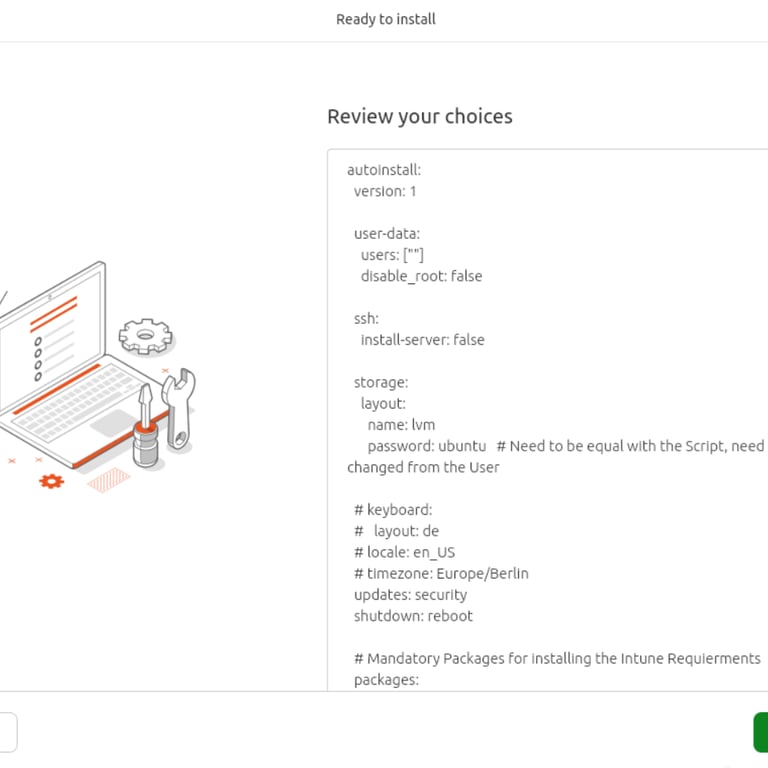
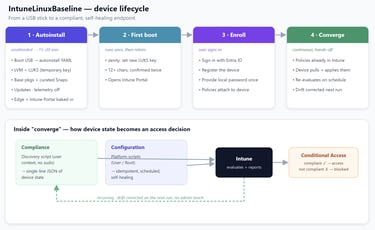
So instead of fighting Intune, the baseline uses a native Ubuntu feature: Automated Installation (autoinstall), which drives the whole install from a single YAML file. In one pass it initializes a user account, lays out the disk with LVM and full-disk LUKS encryption (using a temporary password), installs base packages and a curated set of Snap apps, runs security updates, disables telemetry, removes bloatware, installs Microsoft Edge and the Intune Portal app, and arranges for the user to set a permanent encryption password on first login.
The device boots from a USB stick, the installer is pointed at the autoinstall file, and 15–20 minutes later it reboots into a standardized, pre-hardened state with the Intune Portal ready to go.
Two parts of the flow are worth highlighting:
The Microsoft apps are baked in. The autoinstall adds Microsoft's signing key and package feeds into the target system and installs both apps before first boot so the user never has to hunt anything down:
apt-get install -y intune-portal microsoft-edge-stable
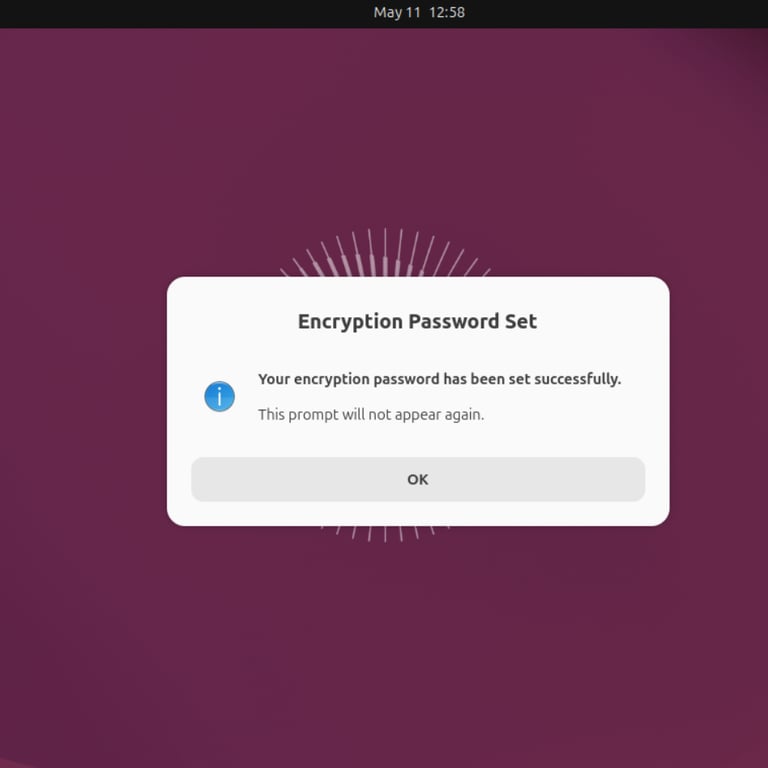
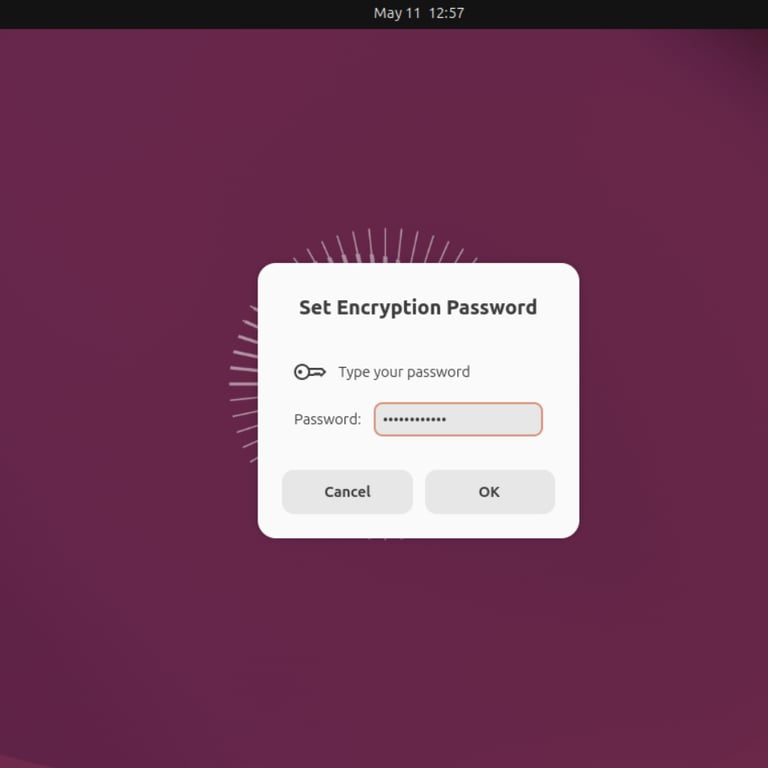
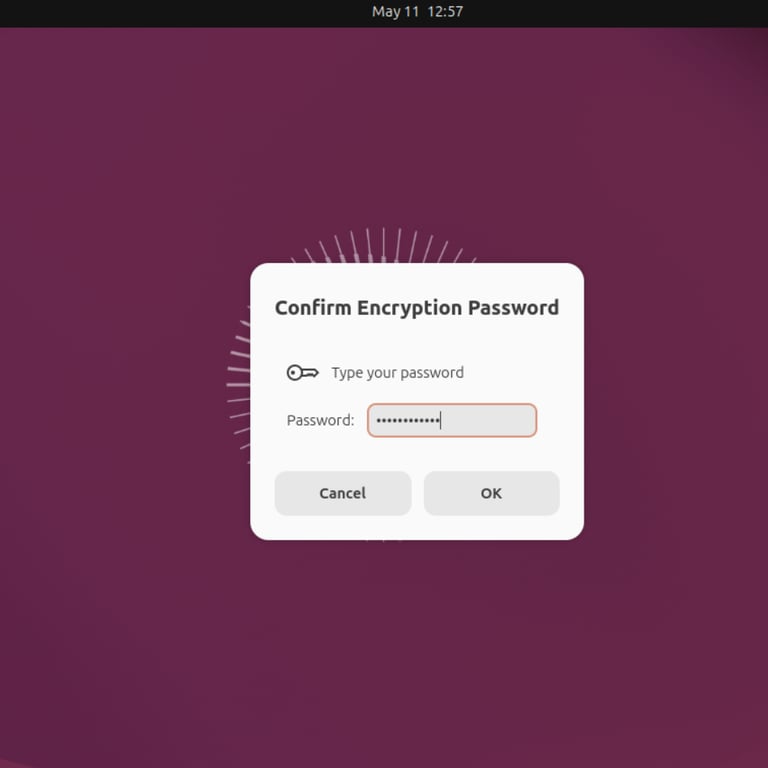
The encryption password handoff. Because the install is unattended, the disk starts with a temporary LUKS password (ubuntu) that obviously can't ship to production. The autoinstall plants a small first-login mechanism: a "zenity" dialog that forces the user to set a new password (minimum 12 characters, confirmed twice), backed by a tightly scoped sudo rule that lets a root helper run `cryptsetup luksChangeKey` and nothing else. A guard file ensures it only ever runs once, and on success it launches the Intune Portal automatically.
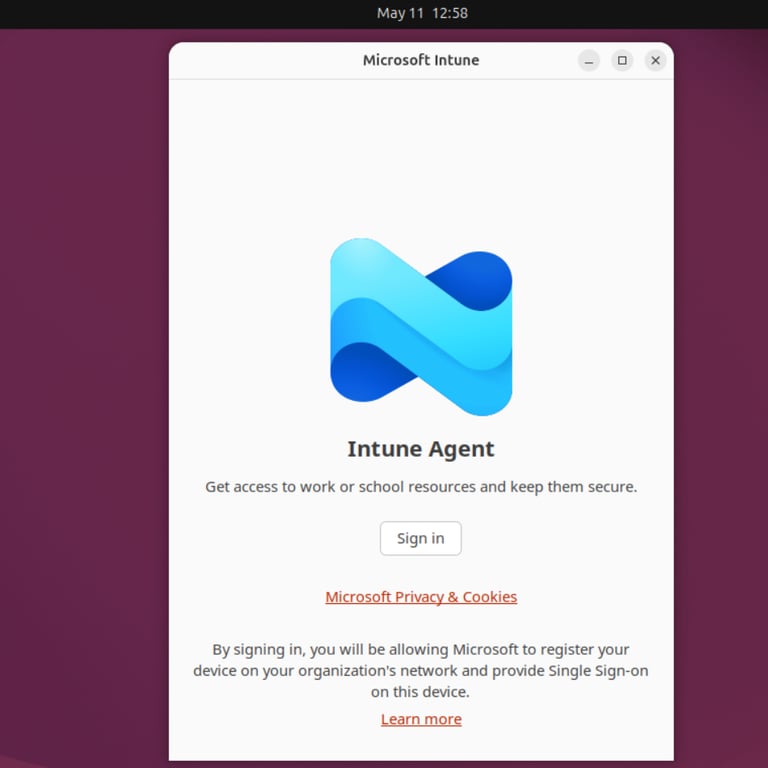
From there, the user signs in with their Entra ID account, registers the device, and provides the local password once (some policies run in root context and need it). The device is now enrolled and because the compliance policies and configuration scripts are already waiting in Intune, it immediately starts converging to the baseline. The full click-by-click walkthrough with screenshots is in Enrollment
Compliance: turning device state into an access decision
Compliance policies define the rules a device must meet to be considered "compliant." Intune evaluates each device, reports its state, and feeds that into Conditional Access in Entra ID so you can allow or block access to company resources based on whether the device is healthy.
Because Intune ships very few built-in compliance rules for Linux, the baseline leans on custom compliance, which has two parts: a discovery script (Bash) that runs on the device and returns its findings as a single-line JSON object, and a JSON rules file uploaded in Intune that defines the expected values and the remediation messages users see when something fails. Two constraints shape the scripts: discovery runs in user context (no `sudo`), and the JSON property names must exactly match the rule's "SettingName"
Microsoft Defender is installed, running, and reports healthy
UFW Firewall is enabled (inbound denied)
UEFI Secure Boot is enabled
Updates were installed in the last 28 days
System disk is encrypted with LUKS
Only supported distros are present
Local account password meets criteria
The built-in policies you simply configure in the admin center. The custom ones all share the same defensive philosophy: prefer the canonical tool, fall back gracefully if it isn't there, never crash, and always emit valid JSON. The Defender check, for example, returns three flags that the rules file then requires to all be true
printf '{"DefenderInstalled":%s,"DefenderRunning":%s,"DefenderHealthy":%s}\n' \
"$installed" "$running" "$healthy"
When a check fails, the user gets an actionable, localized remediation message (the policies ship English and German strings) with a link to the relevant docs. rather than a silent "non-compliant" with no explanation.
check the following link for the complete compliance baseline ➡️ compliance
Configuration: making the desired state stick
Compliance only reports whether a device meets the rules. Configuration is what actually applies settings the hardening and convenience tweaks. Since Intune offers no settings catalog for Linux, the only delivery mechanism is platform scripts: Bash scripts you upload in the admin center. Each one has three useful properties: it runs in a context you choose (User or Root), it runs on a recurring schedule so the configuration is self-healing (drift gets corrected on the next run), and it reports success or failure to Intune via its exit code.
Because they run repeatedly, every script is idempotent. It checks the current state first and only changes something when needed. The firewall script is the textbook example:
CURRENT_FIREWALL_STATUS=$(ufw status | head -n 1)
if [ "$CURRENT_FIREWALL_STATUS" != "Status: active" ]; then
ufw default deny incoming
ufw default allow outgoing
ufw --force enable
fi
The full set covers both hardening and usability
check this for the complete configuration baseline ➡️ Configuration
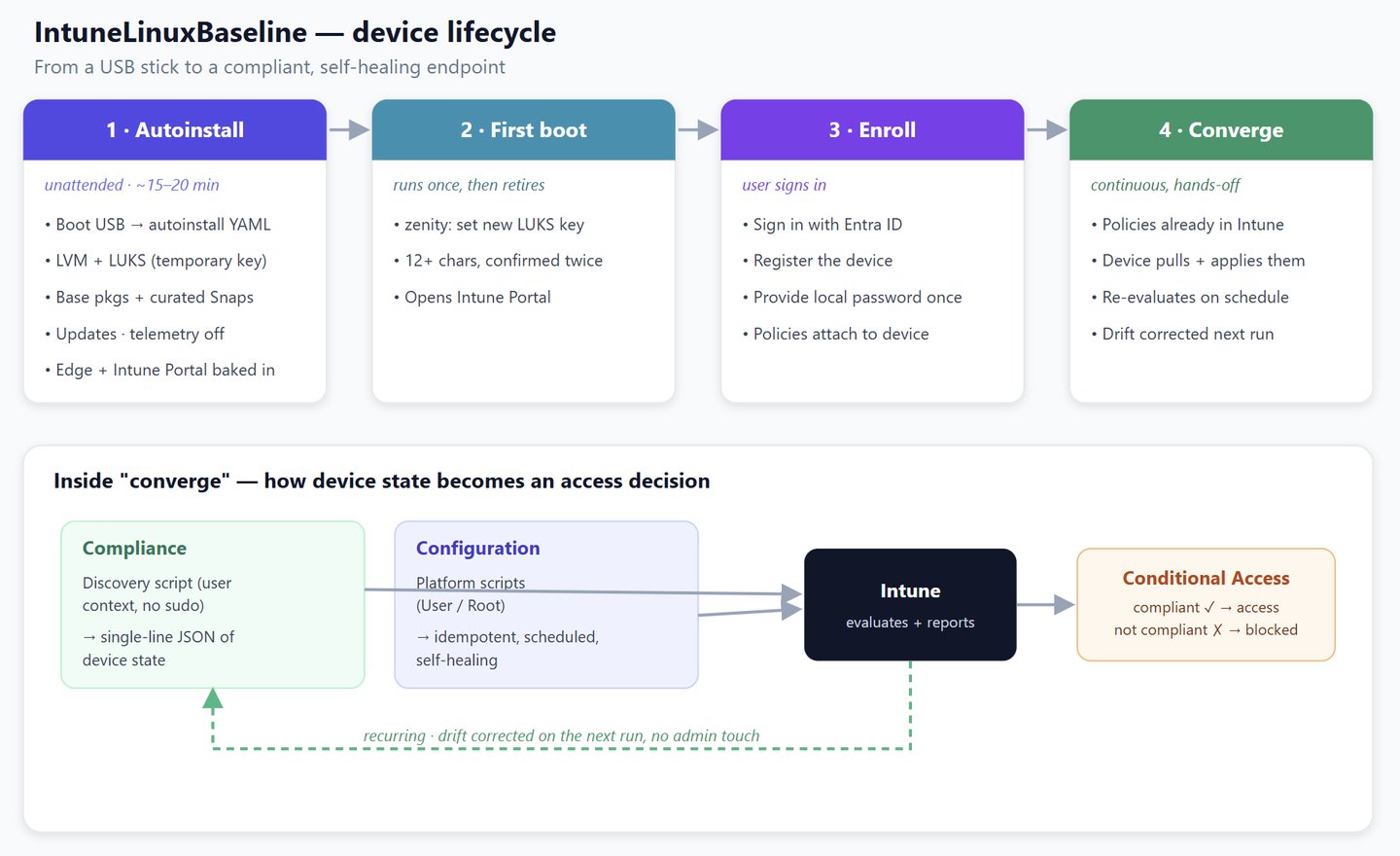
Visualising the Intune Linux Baseline
Use it, improve it
The baseline is open source:
It's deliberately opinionated, but it's a starting point, not a finish line. Contributions of every size are welcome. Bug reports, new policies, documentation fixes. If you're running Linux in Intune and you check something this baseline doesn't, open an issue. That's how the puzzle pieces become a picture.
If this helps you make Linux a valid, well-managed choice in your environment, then it's done its job.
Happy enrolling.
Get in touch
ahmad.hajjouz@outlook.com